
Tuesday, November 16, 2010

-Glowing Lights-
 Main tool used during this project was the pen tool. I made a figure 8 and duplicated the layer numerous amounts of time. Other tools I used afterward were brush tool, free transform, marquee tool, the twirl filter, gaussian blur, and gradient tool.
Typography
 Yes, I know this isn't the best work I've done, but it's what I came up with at the moment.
Typography is using text and arranging it properly to make a design. I made a star and just used the letters of my name to make my name.
Picture Sharpening!!


 Sharpening of my pictures :)
While taking these pictures, my camera was on Macro, to take close-up pictures
Photoshop:)
Tools used were layers, change of blending mode to overlay, and the High Pass filter.
Thursday, November 4, 2010


Wednesday, November 3, 2010
Camera RAW
 ^^White Balance^^
 ^^Vignette^^
 ^^Recovery^^
 ^^Exposure^^
 ^^Clarity^^
Camera RAW is a Photoshop plug-in that is easy to use. It helps fix pictures in a quick and nondestructive way.
Macro Examples
Macro Photography is taking pictures up close that you are able to see a lot of detail and texture.
Example 1
 Example 2
 Example 3
 Images fom www.images.google.com
Spooky Picture

"Glowing Monster Eyes At Night"
It actually was kind of hard to follow the tutorial for this one, but that was mostly because when you click on the link for the tutorial, it shows you a tutorial for a totally different thing. So I had to basically make it my own.
It actually was kind of hard to follow the tutorial for this one, but that was mostly because when you click on the link for the tutorial, it shows you a tutorial for a totally different thing. So I had to basically make it my own.
Tools Review

photoshop:)
Tools Used:
Quick Selection: Selects quickly and in big amounts (kind of, can't explain)
Magnetic Lasso: Used it to magnetically select similar pixels
Refine Edge: Allows it to blend in more
Layer Mask: hides parts of the picture
Quick Mask: Quick selects by applying a mask
Tools Used:
Quick Selection: Selects quickly and in big amounts (kind of, can't explain)
Magnetic Lasso: Used it to magnetically select similar pixels
Refine Edge: Allows it to blend in more
Layer Mask: hides parts of the picture
Quick Mask: Quick selects by applying a mask
Wednesday, October 27, 2010
Midterm Exam =/
For our midterm exam we needed to take two guys out of one picture, place them onto this one "realistically", add a fire hydrant, and remove evidence of a date that was printed on the picture.
(Final Product!)
 photoshop! :)
Tools used: Quick Selection tool, Magnetic Lasso Tool, Refince Edge tool, Duplicate layer, Paint brush, Gaussian Blur, layer masks, and cloning.
Sounds fun?
Color Correcting!
While everyone else went on the trip to Carter's Mountain, I was stuck in AP English :/
So, I ended up taking my own pictures at home and color corrected them as shown below :)
(Color Corrected #1)
 (Color Corrected #2)
 (Black & White) :)
 (Sepia) :)
 (Color Corrected #3)
 photoshop! :)
Tools used: Curves, Threshold, Color Sample Tool, Vibrance & Saturation.
Wednesday, October 13, 2010
Visual Puns
Visual Puns are illustrate a double meaning with the word.... ^^ Book Worm ^^
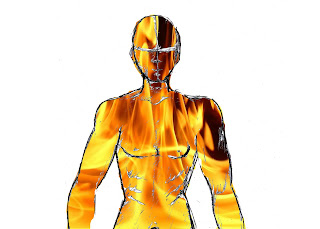 ^^ Fire Man ^^
(Pictures via www.images.google.com)
^^ Book Worm ^^ ^^ Fire Man ^^(Pictures via www.images.google.com)
Tuesday, October 12, 2010
Pop Artt Exampless
Pop Art is a visual art movement that uses elements of pop culture and uses techniques from commercial art and advertising. You're basically transforming a picture you took into a cartoon.
(http://www.julieartworks.citymax.com/i/photo to art/Jack-Russel-pop-art-2W.jpg)
(http://www.julieartworks.citymax.com/i/photo to art/Jack-Russel-pop-art-2W.jpg)

(http://popartcanvas.com/images/logo-header.gif)

(http://www.fotofix.com/pricing/images/large/pet_2.jpg)

Rule of 3rd's Exampless
The Rule of Thirds is visually seeing that the picture is divided into thirds horizontally and vertically, so that you have nine equal parts. This helps lead the eye into a specific point.
Examples Include:


 (Images via www.images.google.com)
:)


 (Images via www.images.google.com)
:)
Wednesday, October 6, 2010
3rd Kaliedascope
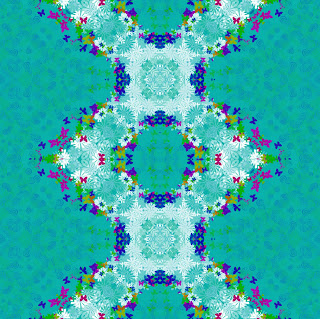
Here's a third picture with the kaliedascope effect.....
(Original Picture)
(Original Picture)
(Kaliedascope Effect Picture)
photoshop:)
Same as the other two, so look at previous posts.
Monday, October 4, 2010
2nd Kaliedoscope
This is Kaleidoscope #2
(Original Picture)
(Original Picture)
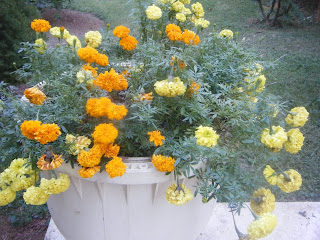 Kaleidoscope effect :)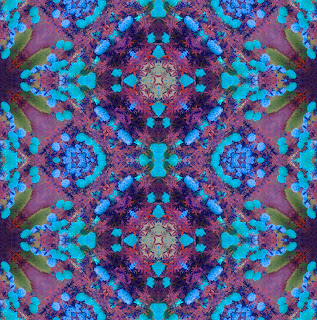
*Same tools used as previous post*
Friday, October 1, 2010
it's a kaliedoscope!
Ok, so we had a shooting assignment and among these pictures I took, I took one of my necklace and was assigned to make it into a kaliedoscope.
(Original Picture)

&& The kaleidoscope version of this is.... 
photoshop:)
Tools used included the Rectangular Marquee tool, Transform, Crop, Merge, Duplicate, Flip Horizontal and Vertical, and adjusted Hue Saturation.
Friday, September 24, 2010
Pop Art Puppy :)
 Sooo this puppy was originally all brown, but during the process of making it into "Pop Art", he turned darker, but still cute :)
Photoshop:)
Tools used were Grayscale Adjustment Layer, Threshold Adjustment Layer, Dodge/Burn Tool, Blending Mode was Multiply, Brush tool, Eraser Tool, Magic Wand and Halftone Pattern. :)
Tuesday, September 21, 2010
Change My Look - Ashley:)
 We also had to change the look of someone else, so I did Ashley. Her haircolor was changed to a more brunnette color, and again the eye color wasn't able to change because her eyes were dark. I made her a giant in NYC with her new best friend, King Kong, and people attempting to attack her from the helicopter.
Photoshop:)
*Same tools used as my previous post:)*
Change My Look - Me:)

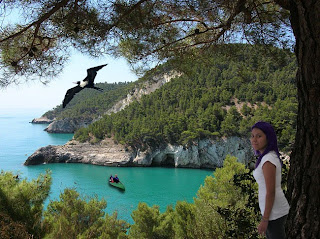
For the Change My Look project we needed to change our hair color, eye color, and add two extra items. Hair color was changed to purple and I couldn't change my eye color because my eyes are too dark.
Photoshop:)
Tools used for the hair were Quick Mask, Brush Tool, blending options, Eliptical Marquee Tool, Polygonal Lasso Tool, Magic Wand Tool, and Copy & Paste.
Subscribe to:
Posts (Atom)